
In the latest update of SOLIDWORKS Electrical, connector management becomes more powerful and flexible with the introduction of expanded variables in connector tables. This enhancement improves how electrical designers document, customize, and automate connector-related information directly within their projects.
What’s New?
Connector tables now support a broader set of variables, enabling users to include more detailed and project-specific data. These variables can be inserted directly into reports and drawings, allowing for better documentation and standardization.
Step-by-Step: How to Use Expanded Variables in Connector Tables
Step 1: Open Your Electrical Project
- Launch SOLIDWORKS Electrical
- Open an existing project or create a new one
- Navigate to the schematic where connectors are defined
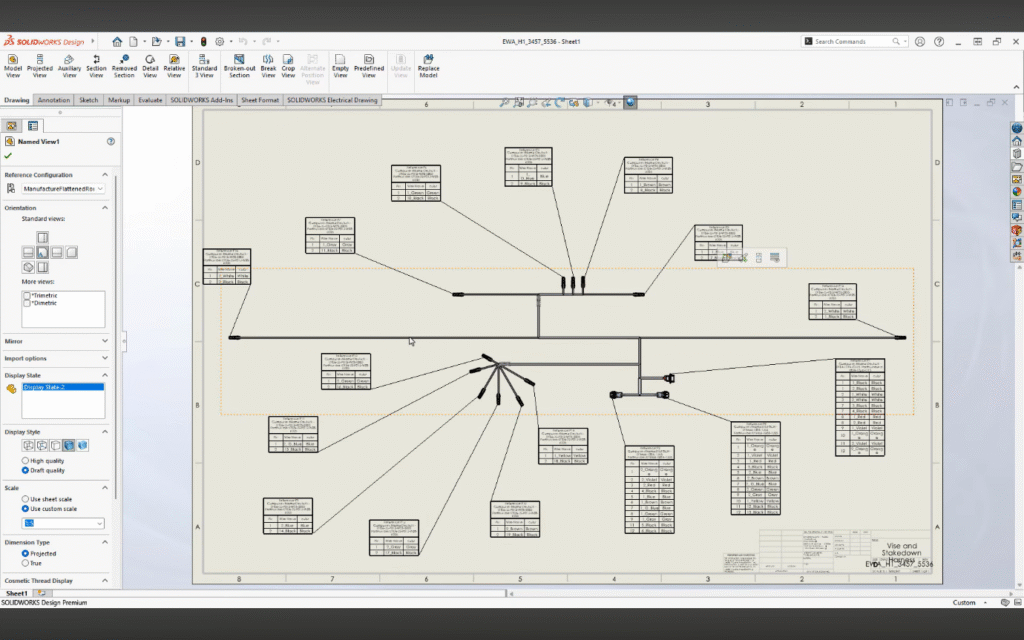
Step 2: Insert or Identify a Connector
- Add a connector symbol if not already present
- Ensure the connector has proper manufacturer part and attributes assigned
- Verify pins and circuits are defined correctly
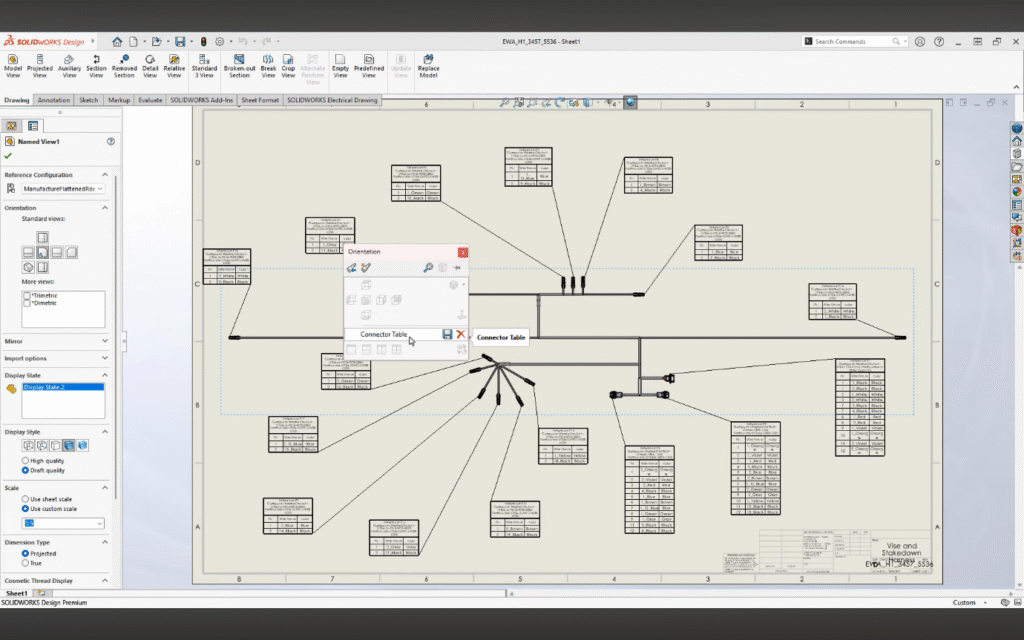
Step 3: Open Report Manager
- Go to Project > Reports
- Select an existing connector report or create a new report
- Choose Connector Table as the report type
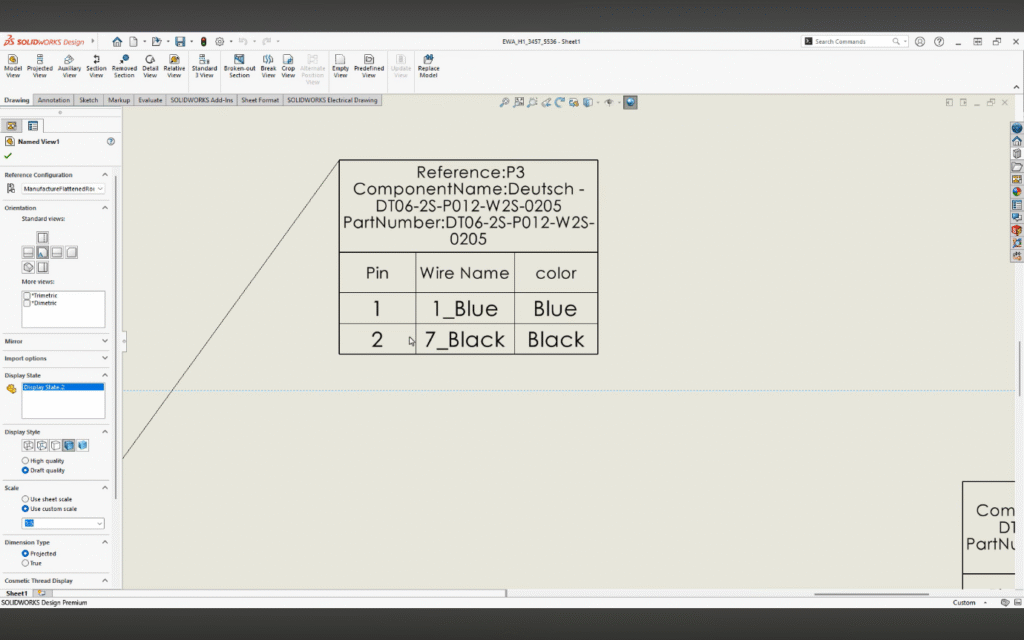
Step 4: Access Variable Configuration
- In the report configuration window, locate “Available Variables”
- Browse through the expanded list of variables
- You will now see newly added connector-related parameters
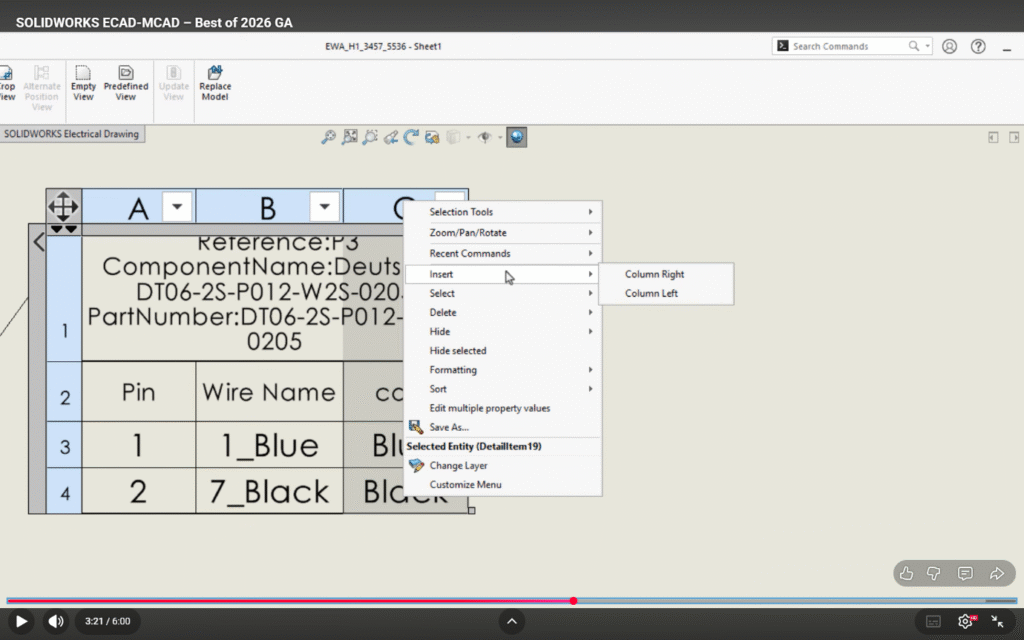
Step 5: Add Expanded Variables to Table
- Drag and drop required variables into the report columns
- Examples include:
- Connector mark
- Pin number
- Signal name
- Manufacturer data
- Custom properties
Step 6: Customize Layout
- Adjust column order, width, and headers
- Apply sorting or grouping if required
- Format the table as per company standards
Step 7: Generate and Update Report
- Click Generate to create the connector table
- Place the report into your drawing
- Use Update whenever design changes occur to keep data synchronized
Practical Use Cases
1. Detailed Connector Documentation
Include additional attributes such as:
- Pin descriptions
- Signal types
- Manufacturer details
- Wiring information
2. Custom Reporting
Generate connector tables tailored to:
- Project standards
- Client requirements
- Industry compliance
Benefits:
- Increased flexibility in connector table design
- Better data visibility and traceability
- Faster report generation
- Reduced risk of documentation errors
Conclusion
The expanded variables in connector tables within SOLIDWORKS Electrical represent a significant step toward intelligent electrical documentation. This enhancement not only saves time but also ensures higher accuracy and better collaboration across teams working alongside SOLIDWORKS.