
DraftSight’s Draw Compare and Auto Dimension tools are game changers for anyone working in CAD, helping designers quickly spot differences between drawings and apply precise measurements automatically. Here’s a step-by-step guide to streamline your workflow and prevent costly mistakes.
Save Time with DraftSight Draw Compare & Auto Dimension
Part 1: Using Draw Compare
When collaborating or managing revisions, it can be tough to spot subtle differences between drawings. Draw Compare does the heavy lifting by instantly pinpointing additions, deletions, and modifications.
Step-by-Step Guide:
- Open DraftSight and Your Drawings:
- Have your two drawing files (e.g., previous and revised) ready.
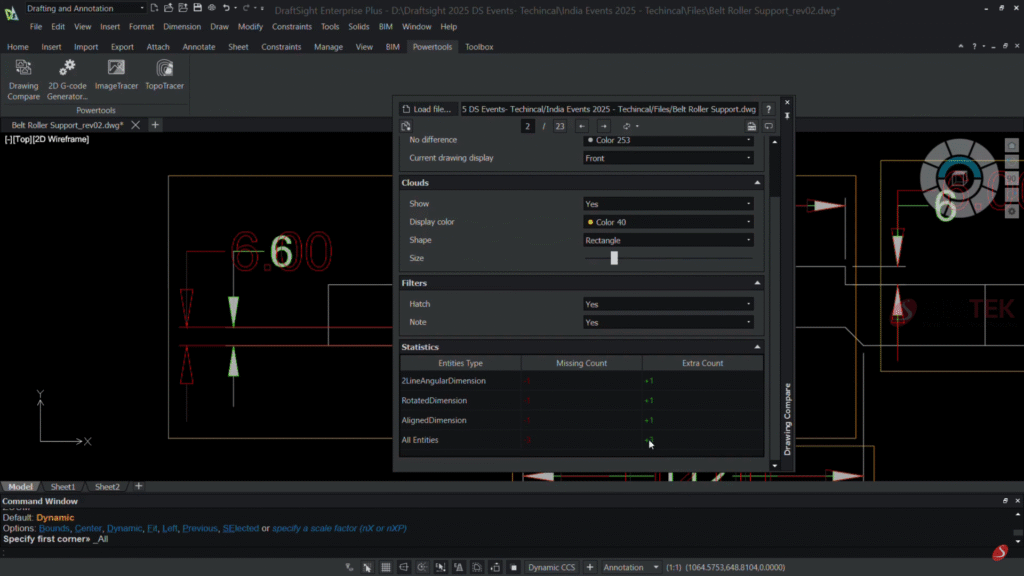
- Access Draw Compare
- Go to the Powertools tab in the ribbon.
- Click on Draw Compare.
- Or, type DRAWCOMPARE in the command window.
- Load Your Drawings
- In the Draw Compare dialog, click Browse for the Drawing 1 field to select your first drawing.
- Repeat for Drawing 2 to add your second drawing.
- Run the Comparison
- Click the Compare Drawings button.
- The tool will analyze and visually highlight changes:
- Entities present only in Drawing 1.
- Entities present only in Drawing 2.
- Review Results and Save
- Zoom to areas for detailed inspection.
- Save the results as a bitmap for record-keeping or collaboration.
- Export Report
- Export the comparision report for the Draw comparision of the old and revised diagram as a .dwg (drawing) file.
Part 2: Adding Dimensions Automatically
Auto Dimensioning speeds up annotation and ensures accuracy by placing the required measurements without manual effort.
Step-by-Step Guide:
- Select Geometry
- In your drawing, highlight the objects you want to dimension.
- Use Auto Dimension Tool
- Go to the Dimension tab in the ribbon.
- Click Auto Dimension .
- Configure settings in the dialog box .
- Preview and Apply
- The tool previews the proposed dimension placements.
- Confirm the settings and apply. The dimensions will be created and placed automatically according to the rules you specify.
- Refine as Needed
- Adjust any dimension placements manually for clarity or compliance to company standards.
Conclusion
In conclusion, DraftSight’s Draw Compare and Auto Dimension tools are indispensable for professionals seeking to enhance their CAD workflows. By automating the detection of drawing changes and streamlining the dimensioning process, these features not only save valuable time but also significantly reduce the risk of errors. Whether working on complex assemblies or simple parts, users benefit from improved accuracy, consistency, and collaboration. Embracing these powerful capabilities ultimately leads to greater efficiency and higher-quality designs, making DraftSight an essential solution for any drafting and design team.