
Customized reports in SOLIDWORKS Electrical are essential for producing accurate, professional, and customer-ready documentation. They allow engineers to modify default report formats by changing columns, filters, sorting, formulas, and layouts to match company and customer standards. Customized reports reduce manual work in Excel, improve manufacturing accuracy, support audit requirements, and help different teams—such as wiring, purchase, and panel assembly—receive exactly the information they need. SOLIDWORKS Electrical 2026 offers improved formula validation, cleaner formatting tools, and faster exporting, making customized reporting even more powerful and efficient.
What Are Customized Reports?
Customized reports are modified versions of standard SOLIDWORKS Electrical reports designed to match company standards, customer needs, and project formats.
Why We Use Customized Reports
To ensure accurate documentation, reduce errors, save time, eliminate manual editing, and meet industry/customer formatting requirements.
Company Standards & Customer Requirements
Reports can be adjusted to follow specific styles—such as wire list formats, cable schedules, or BOM layouts—that different companies and customers demand.
Benefits for Manufacturing & Wiring Teams
Customized wire lists, cable lists, and terminal reports reduce wiring mistakes and improve assembly accuracy.
Time Saving & Automation
Customization eliminates repeated Excel formatting, enabling automatic generation of final-ready reports.
Advanced Formula Support (2026 Update)
SOLIDWORKS Electrical 2026 supports improved SQL-based formulas for wire numbers, from-to arrows, cable cores, and BOM fields.
Better Team Communication
Different teams get tailored reports: panel builders receive wire & terminal reports, purchasing gets BOM, and customers get device lists.
BOM, Wire List, from–To Report, Cable List, PLC Report, Terminal Strip Report, and Drawing List.
Step-by-Step Customization Process
Open Report Manager → Duplicate report → Modify columns → Apply filters → Add sorting/grouping → Insert formulas → Edit title block → Add report to project.
2026 Enhancements
New formatting tools, better formula validation, faster export, and improved PLC/cable report fields.
Final Outcome
Customized reports give clear, reliable, professional, and error-free documentation across all stages of a project
Create a Customized Report
Open Report Manager
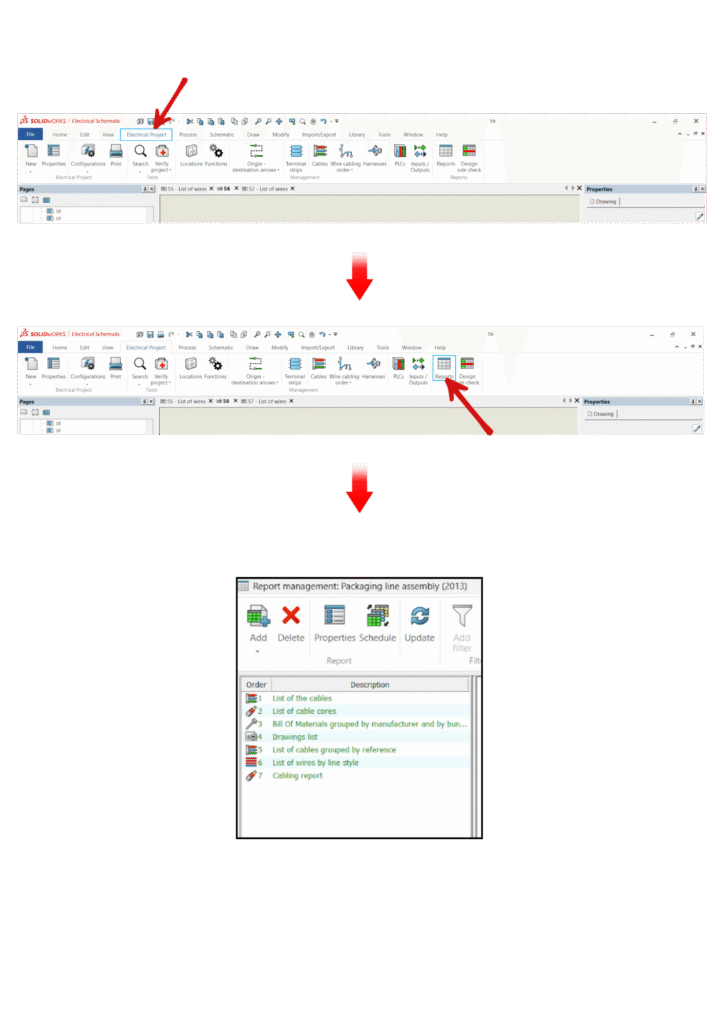
Open your project in SOLIDWORKS Electrical. Go to the Project tab → Reports → Report Manager. This opens the list of available reports for the current project
Duplicate a Default Report
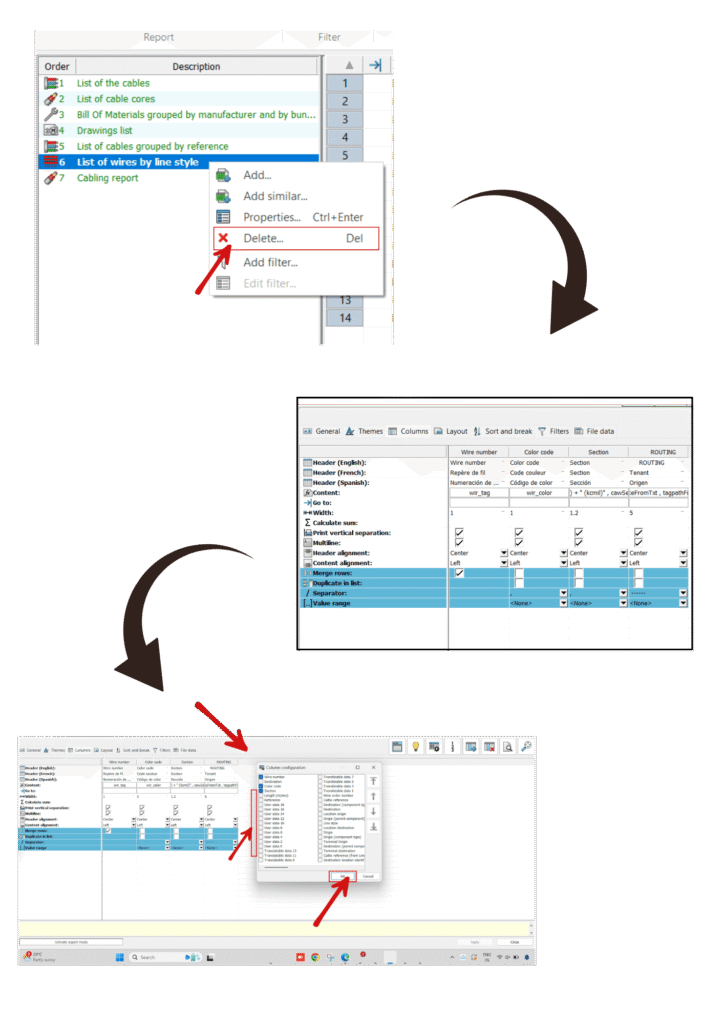
Select the report you want to customize (for example, Wire List). Right-click the report and choose Properties. Go to the Columns tab, then right-click on any column header and select Column Configuration. In the configuration window, choose the options you need by adding, removing, or rearranging columns as required. Once you have completed your custom settings, click OK to apply the changes.
Edit Columns
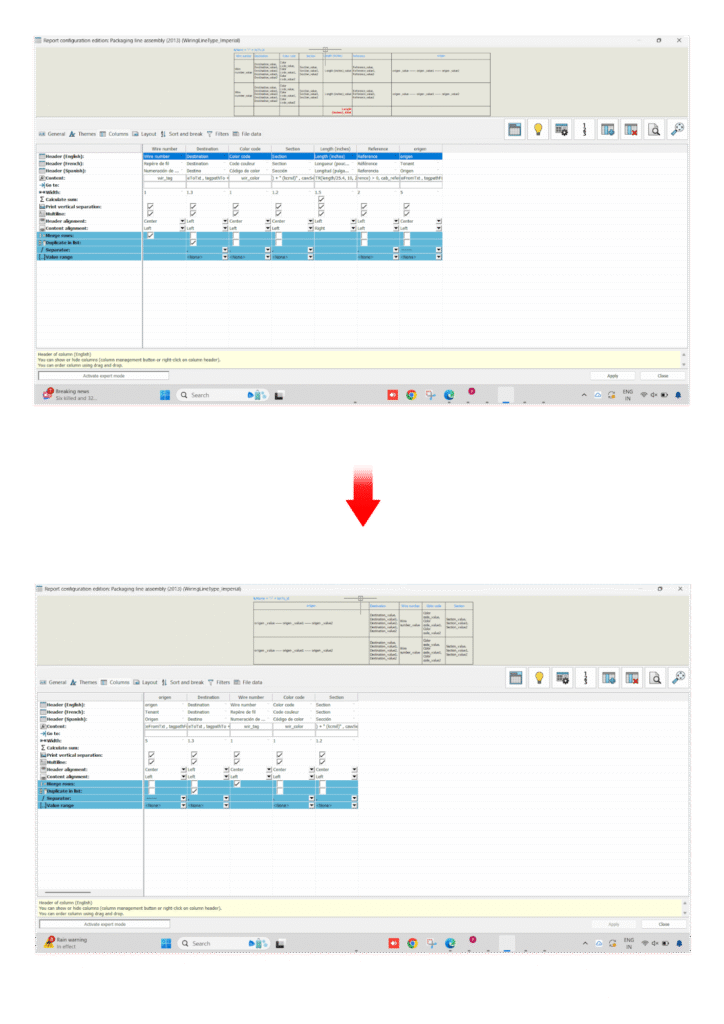
Open the duplicated report and go to the Columns tab. Add fields you need (From component, to component, Cable core, Manufacturer part, etc.), remove unwanted fields, reorder columns with the arrow buttons, and set column widths and alignment. Choose field labels that match company or customer terminology.
Insert Formulas and Expressions
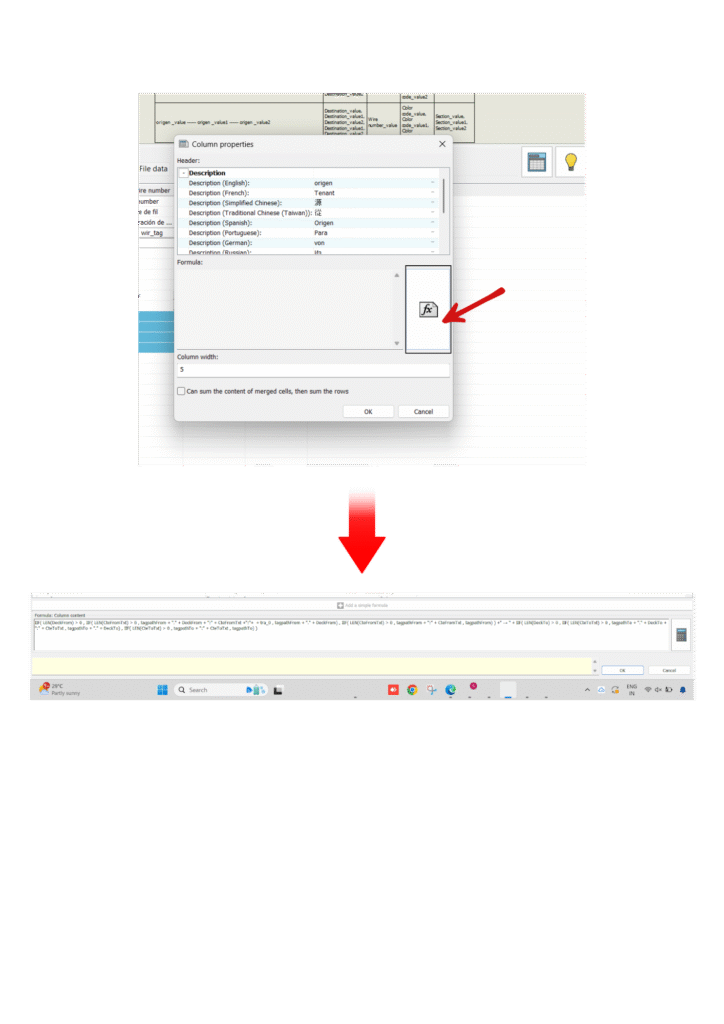
In the Fields or Formulas section, add custom expressions to format data. Examples for Routing report formula on:
IIF( LEN(DeckFrom) > 0 , IIF( LEN(CteFromTxt) > 0 , tagpathFrom + “.” + DeckFrom + “:” + CteFromTxt +”:”+ + tra_0 , tagpathFrom + “.” + DeckFrom) , IIF( LEN(CteFromTxt) > 0 , tagpathFrom + “:” + CteFromTxt , tagpathFrom) ) +” → ” + IIF( LEN(DeckTo) > 0 , IIF( LEN(CteToTxt) > 0 , tagpathTo + “.” + DeckTo + “:” + CteToTxt , tagpathTo + “.” + DeckTo) , IIF( LEN(CteToTxt) > 0 , tagpathTo + “:” + CteToTxt , tagpathTo) )
Validate formulas using the built-in checker (if available) and test on a small dataset.
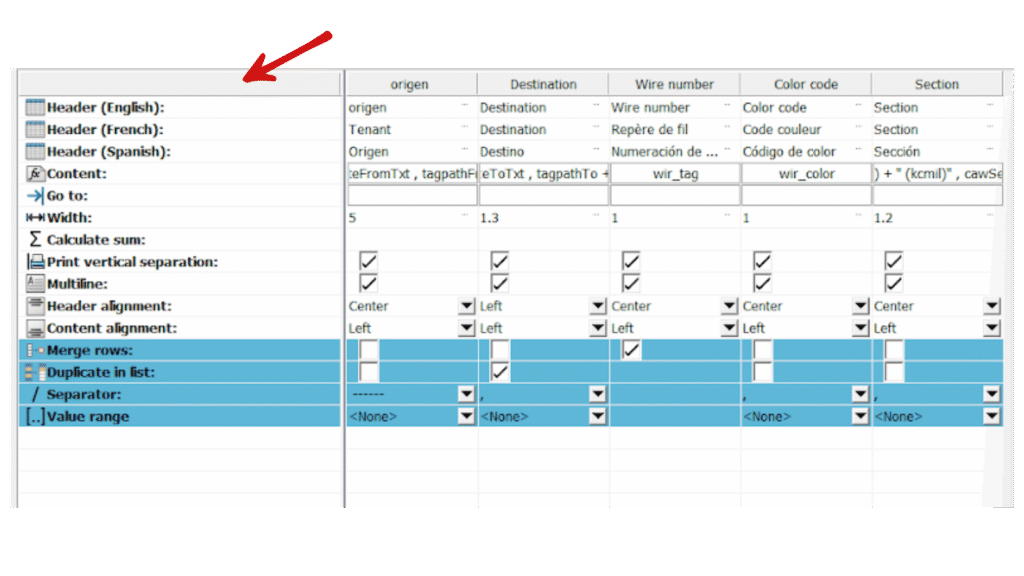
Format Layout
Edit font sizes for headers and rows, add bolding for section headers, set merge rows, width, separator, valve range and add borders for printed clarity. Save a template if you plan to reuse the style.
Preview and Test
Before adding the report to the project, run a preview. Check for missing fields, incorrect sorting, or filter mistakes. Export to Excel or PDF in preview mode to verify formatting and column widths. Make iterative changes until the output matches requirements.
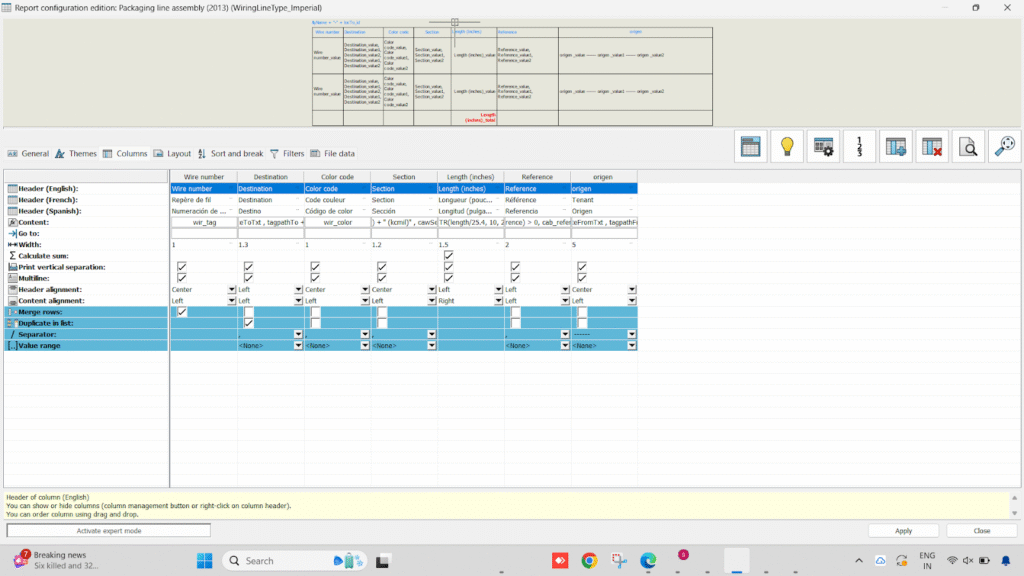
After completing all your column settings and customizations, click Apply to save the changes. Your routing report is now fully updated and ready to use. With this, the customization process is finished.
Generated Drawing – Final Output
When the customized report or routing data is applied inside SOLIDWORKS Electrical, the final generated drawing provides a clean, structured, and production-ready representation of your schematic or report output.
What the Final Output Includes
Clean Layout with Updated Fields
All customized column names, labels, formulas, and routing information appear neatly formatted according to your template settings.
Automatic From–To Wire Details
If formulas were used (From–To, Deck, Terminal, Cable Core), the drawing shows accurate, auto -generated information without manual editing.
Professional Table Format
Your drawing sheet includes:
- Proper column widths
- Header formatting
- Borders and alignment
- Company-standard labelling
No Duplicate Data
Because filtering/sorting rules are applied, the final output avoids:
- Duplicate wires
- Repeated terminals
- Incorrect routing paths
Ready for PDF, Excel, or Print
The generated drawing can be directly exported to:
- PDF (for submission)
- Excel (for wiring teams)
- DWG (if required for CAD sharing)
- How It Looks (Description)
- Your final drawing will appear like:
- Title block updated
- Wire list / routing table neatly placed
- From–To information fully resolve
- Cable cores properly listed
- Clean, aligned, error-free layout
Benefits of Customized Reports
- Saves Time
- No more manual editing or formatting.
- Reduces Wiring & Assembly Errors
- Accurate information with formulas and conditions.
- Company Standardization
- Keeps all projects using the same report format.
- Client Satisfaction
- Clean, branded professional documents.
- Manufacturing Efficiency
- Technicians get exact wire, routing, and terminal details.
Conclusion
Customizing routing report formulas in SOLIDWORKS Electrical allows you to generate precise, readable, and project-specific output. By using fields, formulas, and column configurations, you can enhance clarity, improve accuracy, and automate repetitive tasks. Validating formulas and testing them on a small dataset ensures reliable results. With these customization options, your routing reports become more efficient, consistent, and tailored to your design requirements.
Reference video