
Work Seamlessly with Any CAD File in SOLIDWORKS
Key Features:
- Open and work with files from other CAD software like CATIA, NX, or Creo.
- Maintain design intent and details without losing data.
- Automatic updates when the original files are changed.
- Feature Recognition: Imported parts can be automatically recognized as SOLIDWORKS features (extrudes, holes, fillets), allowing full editing capability.
Below is a Step-by-Step Guide to Enable 3D Interconnect:
- Enable 3D Interconnect:
- Go to Tools > Options > System Options > Import.
- Check “Enable 3D Interconnect” and click OK.
- Go to Tools > Options > System Options > Import.
- Open a CAD File:
- Click File > Open.
- Select the CAD file (STEP, CATIA, Creo, NX, etc.).
- The file will open with an associative link
- Click File > Open.
- Edit the Imported File:
- Right-click the imported part in the FeatureManager Design Tree.
- Right-click the imported part in the FeatureManager Design Tree.
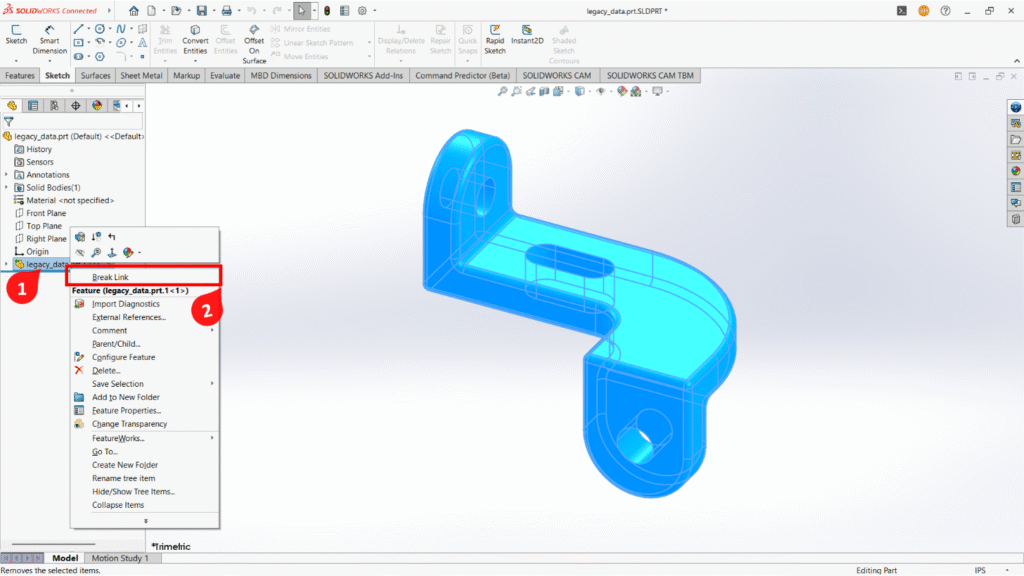
- Select “Break Link” if you want to fully edit it in SOLIDWORKS.
- Use Feature Recognition:
- Right-click the imported part in the FeatureManager Design Tree.
- Select “FeatureWorks” > Recognize Features.
- The software converts imported geometry into editable SOLIDWORKS features.
- Edit Features: Once recognized, you can modify extrudes, holes, fillets, and other features just like a native SOLIDWORKS part.
- Save and Update:
- Make changes as needed and save the part.
- Any future updates in the original file can still sync if 3D Interconnect is enabled.
Benefits:
- Makes imported parts fully editable in SOLIDWORKS.
- Save time by avoiding re-modelling imported geometry.
- Reduces errors during design updates.
- Works seamlessly with complex assemblies and drawings.
Conclusion:
With 3D Interconnect and Feature Recognition, SOLIDWORKS allows engineers to import parts from other CAD systems and immediately edit them as if they were created in SOLIDWORKS. This saves time, reduces errors, and improves workflow efficiency.