
Smart File Preparation & Batch Save in 3DEXPERIENCESOLIDWORKS Design
Introduction
Working with large assemblies and multiple design files in SOLIDWORKS can take a lot of time, especially while saving files to the 3DEXPERIENCE platform. The Batch Save feature makes this process fast, easy, and error-free by allowing users to upload multiple files together in one operation. It helps maintain file references, improves collaboration, and ensures that all related data is saved properly on the platform.
Key Features of Batch Save in 3DEXPERIENCE SOLIDWORKS
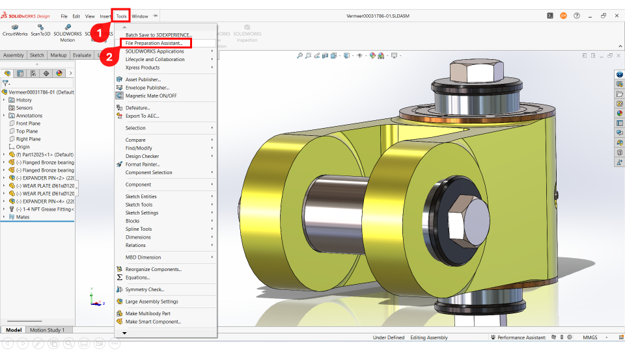
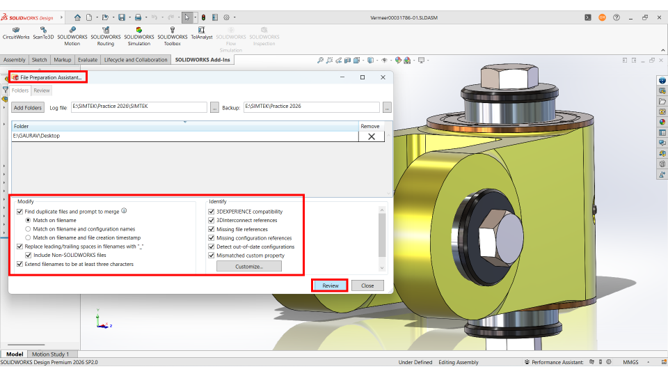
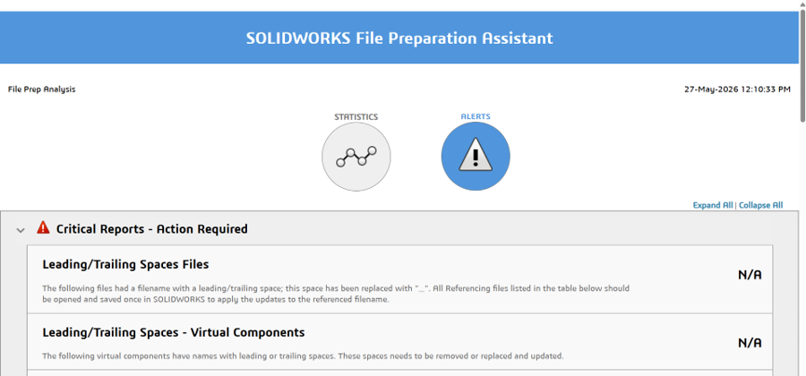
File Preparation Assistant – Before starting Batch Save, it is recommended to check and prepare your files using the File Preparation Assistant in SOLIDWORKS.
To Open: Tools > File Preparation Assistant
This tool helps to:
Step-by-Step Guide to Use Batch Save
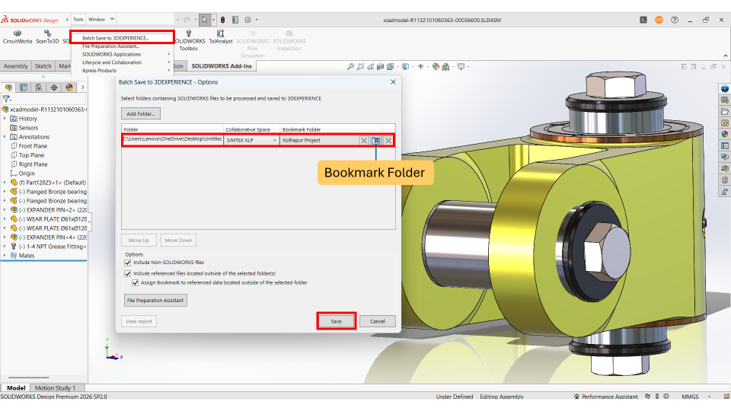
Step 1: Enable Batch Save Add-In
Go to Tools > Add-Ins and enable Batch Save to 3DEXPERIENCE.
Step 2: Open Batch Save Tool
Go to Tools > Batch Save to 3DEXPERIENCE.
Step 3: Add Folders
Click Add Folders and select the required folder.
Step 4: Select Destination
Choose the Collaborative Space and Bookmark.
Step 5: Arrange Folder Priority
Use Move Up and Move Down options.
Step 6: Include Referenced Files
Enable Include referenced files located outside selected folder(s).
Step 7: Start Batch Save
Click Save to upload files.
Step 8: Check Upload Status
Click View Report to verify upload details.
Benefits
Conclusion
Batch Save in 3DEXPERIENCE SOLIDWORKS is a powerful feature that simplifies file management and improves productivity. When combined with the File Preparation Assistant, it ensures smooth, organized, and error-free uploads to the platform.