
Base Flange enhancement in SOLIDWORKS 2026
Start the sheet metal body where you need it — not where the sketch happens to sit.
Introduction
SOLIDWORKS 2026 includes several improvements that help designers work faster. One useful improvement is in the Sheet Metal Base Flange feature. The new options give users more control over where the Base Flange starts.
This is useful when the sketch is created on a plane or surface, but the sheet metal body needs to start at a different location.
Previous approach
In earlier versions of SOLIDWORKS, the Base Flange was created directly from the selected sketch plane or surface. If the flange needed to be created at a different location, additional setup was often required. This could involve:
- Creating a reference plane.
- Adjusting the sketch or reference geometry.
- Rebuilding the model.
- Spending extra time on setup.
For simple parts, this was manageable, but complex sheet metal models could require additional design effort.
What is new in SOLIDWORKS 2026?
SOLIDWORKS 2026 makes the Base Flange feature more flexible. You can create the sketch where it is convenient and then control the starting location of the Base Flange.
The new workflow allows you to use:
- A specific offset distance.
- An Up To Surface condition.
- A selected plane or surface as a reference.
This means you may not need to create additional reference planes just to move the Base Flange to the required position.
How to use the new Base Flange option
-
Create the sketch
Create the required sheet metal sketch on a suitable plane or surface.
-
Start Base Flange/Tab
Go to Sheet Metal and select Base Flange/Tab.
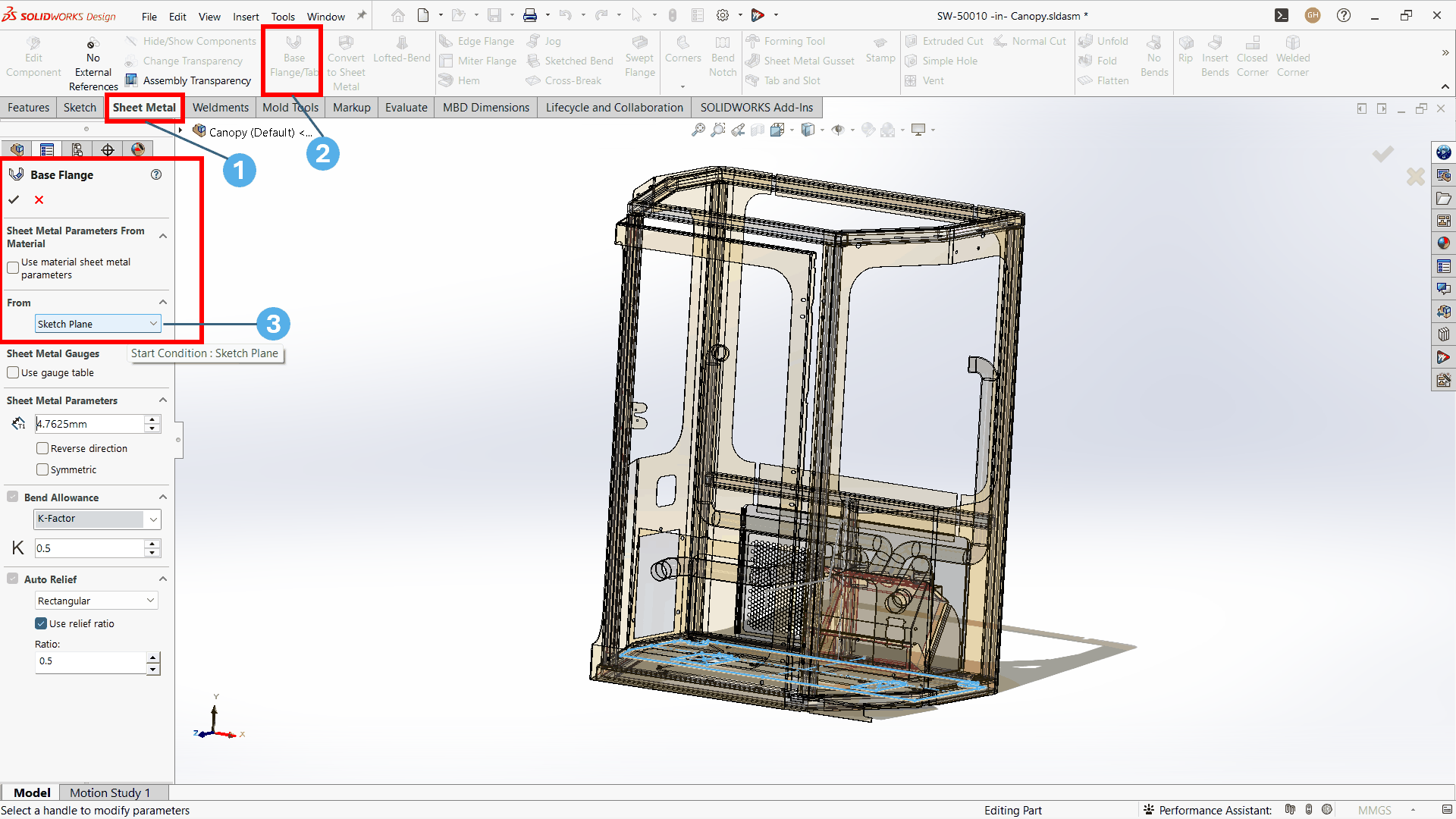
The Base Flange/Tab command on the Sheet Metal tab, with the From group visible in the PropertyManager. -
Select From
In the Base Flange PropertyManager, select the From option.
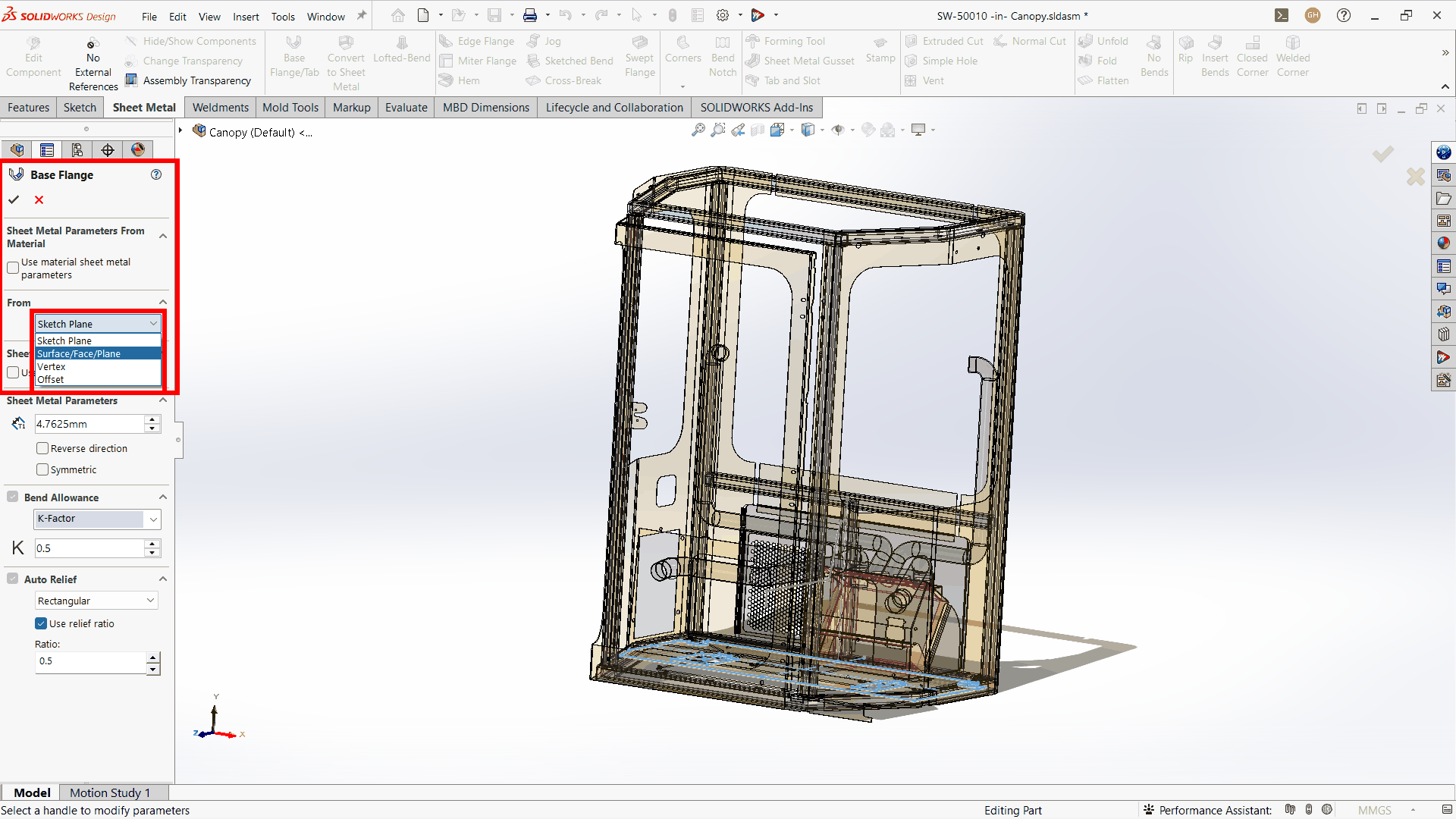
The From list offers Sketch Plane, Surface/Face/Plane, Vertex and Offset as start conditions. -
Select the reference
Choose the required plane, surface, or other reference.
-
Set the location
Define the required distance or select the Up To Surface option.
-
Click OK
SOLIDWORKS creates the Base Flange at the selected location.
Benefits for sheet metal designers
This enhancement can save time by reducing the number of setup steps required before creating a Base Flange.
- Less need for extra reference planes.
- Easier sketch and feature setup.
- Faster changes to the model.
- Better control over the Base Flange location.
- Simpler design changes when the model is updated.
- Useful for complex and multibody sheet metal parts.
Simple example
Suppose you have a sheet metal part where the best plane for creating the sketch is not the same location where the Base Flange needs to start.
Earlier, you might create another reference plane at the required location. In SOLIDWORKS 2026, you can keep the sketch on the convenient plane and use the From option to control where the Base Flange starts.
This makes the model easier to create and can also make future design changes simpler.
Why is this enhancement useful?
The Base Flange enhancement may look like a small change, but it can be useful in everyday sheet metal design. Designers can spend less time creating reference geometry and more time working on the actual design.
For companies working with many sheet metal parts, even small-time savings on each model can improve overall productivity.
Conclusion
The Base Flange improvement in SOLIDWORKS 2026 gives sheet metal designers more flexibility when creating a part. The ability to use an offset distance or Up To Surface condition makes it easier to control the starting location of the Base Flange.
Overall, this enhancement helps reduce unnecessary setup work and provides a simpler way to create and modify sheet metal models.