Using SWX Composer Files in Microsoft Word with Embedded Controls
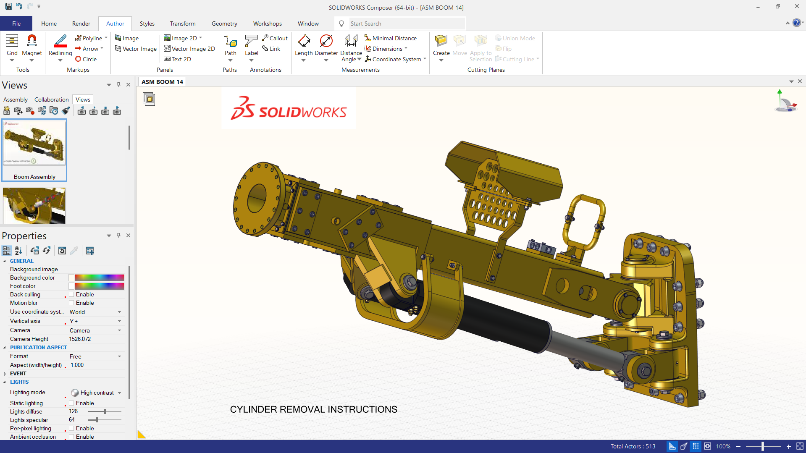
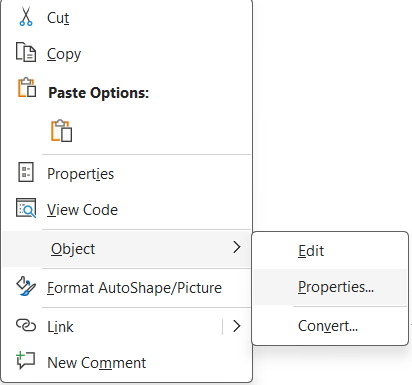
In this blog, we’ll explore how to embed and interact with .smg files inside Microsoft Word using SWX Composer Player ActiveX controls, complete with custom buttons for playback. Step 1: Load Your 3D Model Step 2: Create Views Step 3: Add “Next” Buttons Step 5: Enable the Developer Tab in Microsoft Word File Step 6: Insert Composer ActiveX Control Step 7: Load the .SMG File in Word By combining Composer’s interactive views with Microsoft Word’s ActiveX capabilities, you can create truly dynamic documentation. Adding a Next button per view helps guide users through a step-by-step visual journey — perfect for manufacturing, support, and training content. Ready to Bring Your Documentation to Life? 📩 Contact Us Today to get started or book a demo! 

Conclusion for SWX Composer Files
Integrating SWX Composer files into Microsoft Word not only enhances the clarity of your technical content but also transforms static documents into interactive, step-by-step guides. Whether you’re building manuals, assembly instructions, or training material, this method ensures your audience gets a hands-on visual experience. If you’re looking to implement SOLIDWORKS Composer or need assistance with setup, licensing, or training, reach out to our experts at SIMTEK—your trusted Authorized SOLIDWORKS Reseller in Tamil Nadu and Kolhapur. We’re here to help you elevate your technical communication.